> For the complete documentation index, see [llms.txt](https://glyue.docs.sandboxbanking.com/llms.txt). Markdown versions of documentation pages are available by appending `.md` to page URLs; this page is available as [Markdown](https://glyue.docs.sandboxbanking.com/how-to-guides/how-to-set-up-single-sign-on-sso/integration-gateway-setup.md).
# Integration Gateway Setup
This article aims to guide the user through how to set up SAML SSO in Integration Gateway.
{% hint style="warning" %}
Before continuing, this user should be a Integration Gateway administrator for the target environment.
{% endhint %}
### Create a SAML Config
Log into Integration Gateway and navigate to the Admin site.
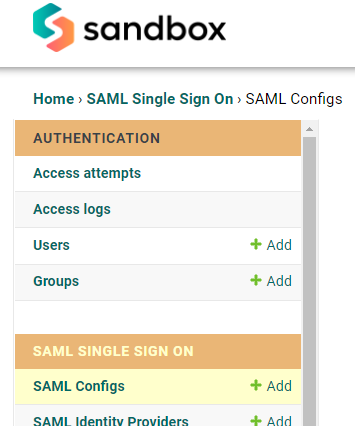
Scroll to the **SAML SINGLE SIGN ON** section, locate **SAML Configs** and click **Add**.
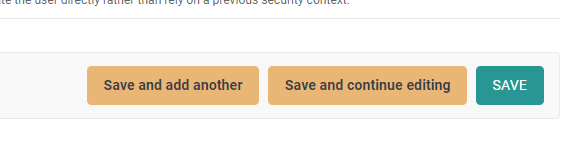
On the web form that displays, scroll to the bottom (without changing any values) and click **SAVE**.
Default SAML settings are considered secure and should suffice for most use cases. If SSO customization is desired, please see this article:
{% content-ref url="/pages/wQ8FUfmZQXZH6zrH0luT" %}
[Integration Gateway SAML Config Reference](/how-to-guides/how-to-set-up-single-sign-on-sso/integration-gateway-saml-config-reference.md)
{% endcontent-ref %}
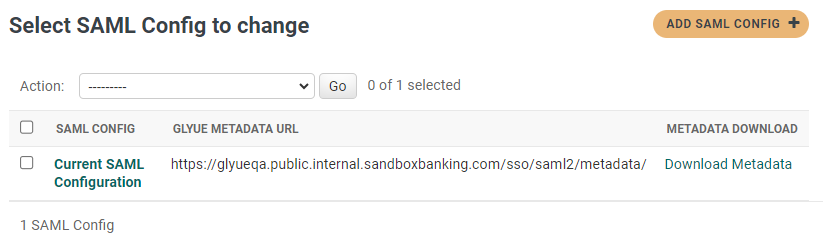
Note that on the resulting page, there is now a URL and a download link for Integration Gateway's SAML metadata:
Provide the URL or metadata file to the IdP admin, who now must add Integration Gateway on their end as an external SSO application (aka Service Provider) and supply their IdP SAML metadata.
### General IdP Setup
1. Create a new Service Provider (aka SSO Application, External Application, SSO Integration, SAML Application, etc. or something similar).
2. Upload the Integration Gateway metadata. Some IdPs won't support uploading a file, and will prefer a URL or even for the data to be copied and pasted.
{% hint style="info" %}
Integration Gateway always serves its metadata at `/sso/saml2/metadata/`.
Also, Integration Gateway's metadata can be downloaded from the **SAML Configs** page on the **Admin** site. The page will also display the full URL.
{% endhint %}
3. Configure as necessary, add users, map user attributes, etc.
{% hint style="info" %}
By default, a user's email address is used to identify the correct user for login in Integration Gateway. The attribute (aka field) on the Integration Gateway User object is simply `email`, which may differ from the IdP's User object (which might be`emailAddress`, `email_addr`, or something similar).
In this case, the IdP user email address attribute name needs to be mapped to Integration Gateway's. Integration Gateway supports user attribute mapping on its end, and most IdPs do as well.
See [Integration Gateway SAML Config Reference](/how-to-guides/how-to-set-up-single-sign-on-sso/integration-gateway-saml-config-reference.md) for more information.
{% endhint %}
5. Save/activate/enable the new SSO application.
6. There should now be SAML metadata available which should be provided back to the Integration Gateway admin.
### IdP-specific setup instructions
{% content-ref url="/pages/UfXan0BoZ10MJUPwUFpD" %}
[JumpCloud Setup](/how-to-guides/how-to-set-up-single-sign-on-sso/jumpcloud-setup.md)
{% endcontent-ref %}
{% content-ref url="/pages/3hkxcHQiOY1DJ5w1iqCL" %}
[Okta Setup](/how-to-guides/how-to-set-up-single-sign-on-sso/okta-setup.md)
{% endcontent-ref %}
{% content-ref url="/pages/wM6qlluC4TRow0lq8CpI" %}
[Azure Setup](/how-to-guides/how-to-set-up-single-sign-on-sso/azure-setup.md)
{% endcontent-ref %}
### Add the IdP to Integration Gateway as a trusted authenticator
{% hint style="warning" %}
Before continuing, Integration Gateway should be configured and active in the IdP, and the IdP's SAML metadata should be available.
{% endhint %}
On the Admin site, under **SAML SINGLE SIGN ON**, locate **SAML Identity Providers** and click **+Add**.
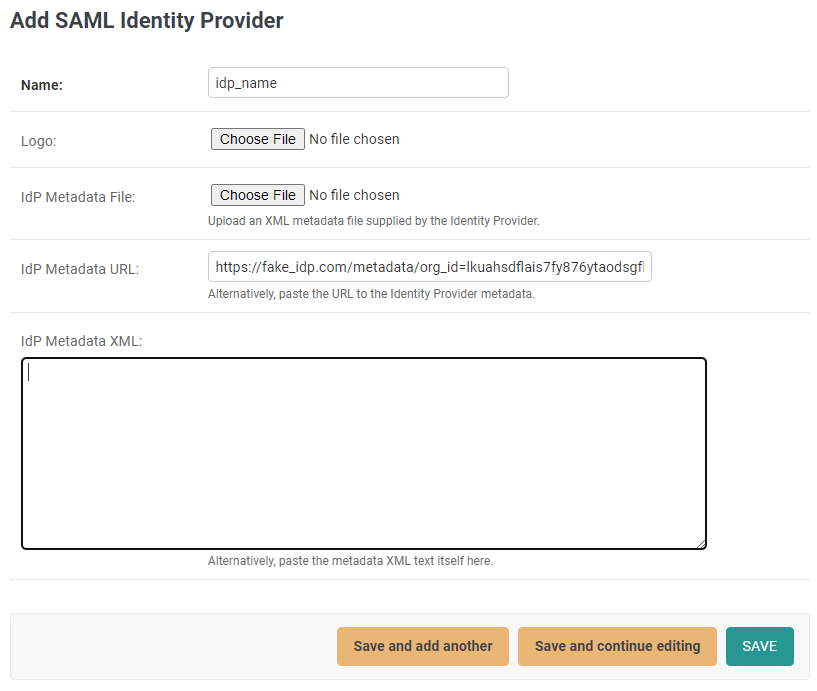
Provide a name, optionally a logo image, and the metadata.
Click **SAVE**. Integration Gateway should now allow users to log in via this provider.
### Testing connectivity
Log out of Integration Gateway and go to the main page. The login dialog should have a new section, **Single Sign On**, and the added IdP’s name should appear on a button.
Clicking the button should redirect the user to the IdP login page. After successful authentication, the user should be redirected back to Integration Gateway, bypassing the login screen and going right to the requested page.
{% hint style="danger" %}
If the user encounters a **403 Access Denied** error after authenticating, this means Integration Gateway was unable to locate a user based on the information provided by the IdP. This is most likely due to one of the following issues:
1. The user in Integration Gateway is not active or doesn't exist.
2. The user’s email address in Integration Gateway does not match exactly to the email address at the IdP.
3. The IdP has not been properly configured to include the user email address in the information it submits to Integration Gateway for SSO.
4. The name of the email address user attribute is different between Integration Gateway and the IdP. This can be solved by adding an attribute mapping on the SAML Config page. Some IdPs also have this optionality on their end.\
\
See [Integration Gateway SAML Config Reference](/how-to-guides/how-to-set-up-single-sign-on-sso/integration-gateway-saml-config-reference.md)
{% endhint %}
---
# Agent Instructions
This documentation is published with GitBook. GitBook is the documentation platform designed so that both humans and AI agents can read, navigate, and reason over technical content effectively. Learn more at gitbook.com.
## Querying This Documentation
If you need additional information that is not directly available in this page, you can query the documentation dynamically by asking a question.
Perform an HTTP GET request on the current page URL with the `ask` query parameter, and the optional `goal` query parameter:
```
GET https://glyue.docs.sandboxbanking.com/how-to-guides/how-to-set-up-single-sign-on-sso/integration-gateway-setup.md?ask=&goal=
```
`ask` is the immediate question: it should be specific, self-contained, and written in natural language.
`goal` is optional and describes the broader end goal you are ultimately trying to accomplish on behalf of the user. GitBook uses it to tailor the answer towards what is most useful for that goal.
The response will contain a direct answer to the question and relevant excerpts and sources from the documentation.
Use this mechanism when the answer is not explicitly present in the current page, you need clarification or additional context, or you want to retrieve related documentation sections.