> For the complete documentation index, see [llms.txt](https://glyue.docs.sandboxbanking.com/llms.txt). Markdown versions of documentation pages are available by appending `.md` to page URLs; this page is available as [Markdown](https://glyue.docs.sandboxbanking.com/integration-gateway-platform-reference/buildhelper.md).
# Buildhelper
Buildhelper is a tool within Integration Gateway that aims to provide a basic starting point for Service Requests against an external API or System.
## Importing a Service Request
The **Import** **Service Request** feature assists the integration developer to create new Service Requests for supported Systems (aka Adapters) with predefined Field Mapping rows. This saves the developer the trouble of referencing API documentation outside Integration Gateway to ascertain the payload structure of the request (i.e. the fields).
{% hint style="warning" %}
Referencing external API documentation is still recommended.
{% endhint %}
Buildhelper functions as a “wizard” where the developer selects the System they are building against, then the applicable Service, then Field Mappings, and then import options.
{% hint style="info" %}
A **Service** is simply a grouping of related request types for a given System. Often, this is because the various request types will perform different actions on the same object/record in the target system.
**Example**
Imagine a “Customer” service on an arbitrary ReSTful API that has separate URL paths and HTTP methods for creating, editing, getting, and deleting Customer records in the target System.
Let's say we want to edit and existing Customer record. The Service Request would look something like this:
* The Service Request’s **Service Name** would be `Customer`
* The applicable Field Mapping set might be labeled as `Update Customer` or similar
* The Buildhelper will provide all fields for this type of request
{% endhint %}
{% hint style="warning" %}
Not all Systems have Services and some Services only have one Field Mapping Set.
Not all Systems/Adapters are yet supported, but we are actively working on generating field metadata for commonly used systems, as well as all new systems going forward.
{% endhint %}
### Usage
1. Open the Buildhelper interface on the Build page by clicking the **Buildhelper** button on the bottom bar.
2. Select the target system.
3. Select the applicable Service.
4. Select the applicable Field Mapping set.
5. A preview of the Field Mappings will be displayed. Click the bottom button: **Accept and Proceed to Import Options.**
6. Name your new Service Request (the Formula variable), select an existing Integration to add the Service request to, or create a new Integration with this Service Request. Then click **Add Rows to Table.**
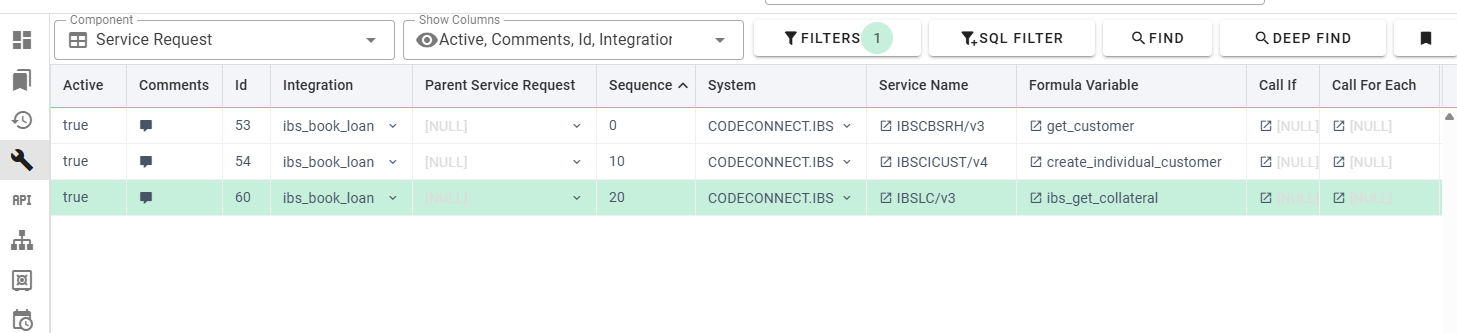
7. The Build page will automatically navigate to show you the imported data.
{% hint style="warning" %}
These changes are merely *staged* and not yet *saved*. The user must save changes for the data to persist, just like making any other changes on the Build page.
{% endhint %}
---
# Agent Instructions
This documentation is published with GitBook. GitBook is the documentation platform designed so that both humans and AI agents can read, navigate, and reason over technical content effectively. Learn more at gitbook.com.
## Querying This Documentation
If you need additional information that is not directly available in this page, you can query the documentation by asking a question.
Perform an HTTP GET request on the following URL with the `ask` and `goal` query parameters:
```
GET https://glyue.docs.sandboxbanking.com/integration-gateway-platform-reference/buildhelper.md?ask=&goal=
```
`ask` is the immediate question: it should be specific, self-contained, and written in natural language.
`goal` is what the user is ultimately trying to achieve, the reason they need the answer. Sharing it helps GitBook give you a better, more relevant answer. A goal is most helpful when it describes the outcome the user wants rather than restating the question. For example, with `ask=how do I create an API token`, a goal like `automate deployments from our CI pipeline` lets GitBook tailor the answer to that use case.
The response will contain a direct answer to the question and relevant excerpts and sources from the documentation.
Use this mechanism when the answer is not explicitly present in the current page, you need clarification or additional context, or you want to retrieve related documentation sections.