> For the complete documentation index, see [llms.txt](https://glyue.docs.sandboxbanking.com/llms.txt). Markdown versions of documentation pages are available by appending `.md` to page URLs; this page is available as [Markdown](https://glyue.docs.sandboxbanking.com/~/changes/sRNNcOmmdTZIw2Ha7IFP/tutorials/what-is-pre-mapping/bookmarks.md).
# Bookmarks
The **Bookmarks Page** is where you'll find the set of bookmarks for your organization. Much like the bookmarks in your browser, **Bookmarks** in Glyue are simply a link to a specific location in Glyue. **Bookmarks** can point to any URL, but they typically will point to a particular set of **Field Mappings** in Glyue's Build page for **Pre-Mapping**.
A given integration framework will often encompass hundreds of **Field Mappings**. **Bookmarks** are a way to group them by category into manageable collections. Examples of such categories typically grouped into **Bookmarks** are addresses, interest rate fields, or collateral details. By having each **Bookmark** focus on a particular business function or category, the **Pre-Mapping** and **Mapping** phases can progress more quickly and efficiently.
Each Integration template will have a set of **Bookmarks** for the integration and new ones can be added as needed later.
In this part of the tutorial, we'll open the **Bookmarks** page and view its contents.
1. Log into Glyue
2. From the first page, hover over the menu icons to expand it and find **Bookmarks**\

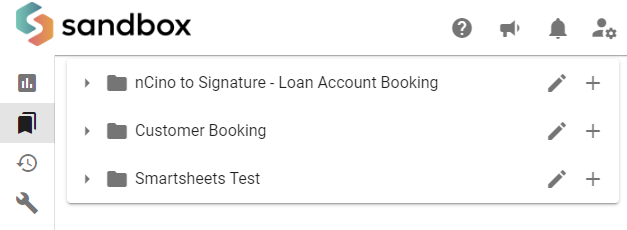
3. Click on **Bookmarks** to navigate to its page which will look something like this (NOTE: the specific sections for your integration may vary). This page lists the **Bookmark Sections**; a **Section** is a specific collection of **Bookmarks** grouped by a common category:
4. To the left of each **Section** with the folder icon is a triangle to expand the view. To the right are buttons for editing and adding new **Bookmarks** which will be explored another time. Click on any of the **Sections** to expand its contents.
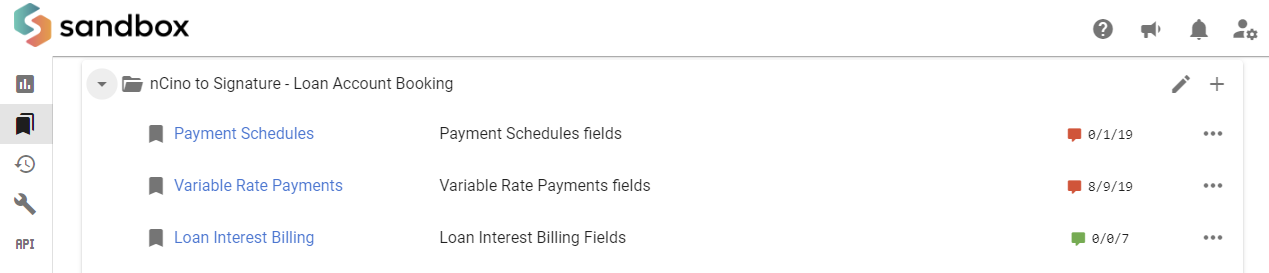
5. Each **Bookmark** for the **Section** will be listed here with a title/link, description, and tabulation of total rows, comments, and rows whose comments are resolved. Click on one of the links to view its **Field Mapping(s)**.\
\
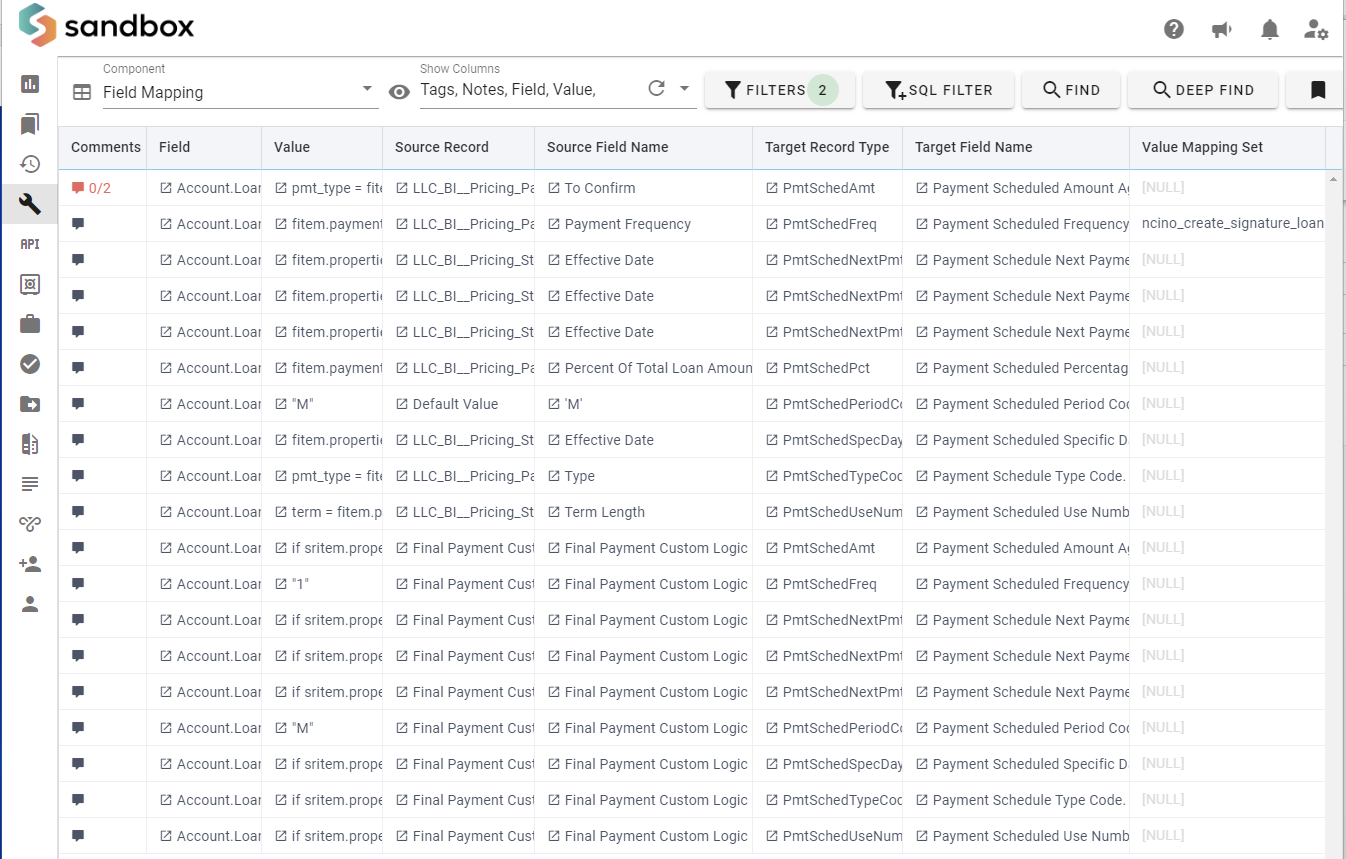
You'll know you've reached the **Field Mapping** portion of the **Build Page** if the **Component** dropdown in the upper left has **Field Mapping** selected.\
{% hint style="info" %}
Suppose you don't see **Field Mapping** in the **Component** menu. In that case, you can go back to Step 4 and select another **Bookmark** (The Sandbox Banking Project Manager or Solutions Engineer can assist if you have trouble identifying the correct Bookmark(s)).\
\
Any time you want to go to a particular **Field Mapping**, you can repeat the steps outlined above.
{% endhint %}
There are typically hundreds of **Field Mappings** across different objects or record types for a given integration. The purpose of **Bookmarks** in the **Pre-Mapping** phase is to break down all of these **Field Mappings** into manageable groups for a particular category or object.
That concludes this part of the Pre-Mapping Tutorial.
---
# Agent Instructions
This documentation is published with GitBook. GitBook is the documentation platform designed so that both humans and AI agents can read, navigate, and reason over technical content effectively. Learn more at gitbook.com.
## Querying This Documentation
If you need additional information that is not directly available in this page, you can query the documentation dynamically by asking a question.
Perform an HTTP GET request on the current page URL with the `ask` query parameter, and the optional `goal` query parameter:
```
GET https://glyue.docs.sandboxbanking.com/~/changes/sRNNcOmmdTZIw2Ha7IFP/tutorials/what-is-pre-mapping/bookmarks.md?ask=&goal=
```
`ask` is the immediate question: it should be specific, self-contained, and written in natural language.
`goal` is optional and describes the broader end goal you are ultimately trying to accomplish on behalf of the user. GitBook uses it to tailor the answer towards what is most useful for that goal.
The response will contain a direct answer to the question and relevant excerpts and sources from the documentation.
Use this mechanism when the answer is not explicitly present in the current page, you need clarification or additional context, or you want to retrieve related documentation sections.